


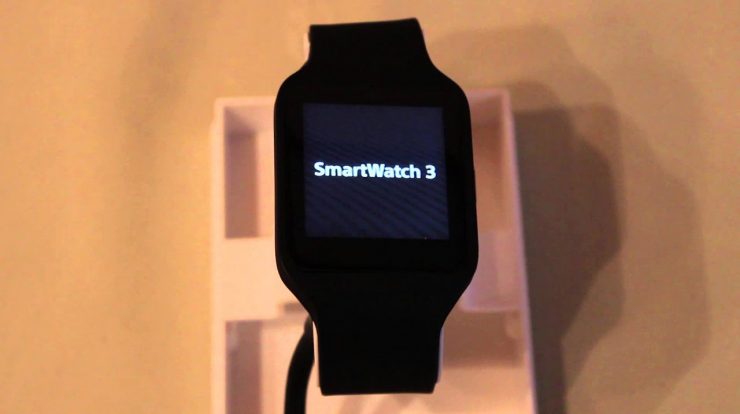
First of all, shut down your sony, smarter three by swiping to the left and choosing settings now at the bottom. There is a button called power off press this button and confirm your device is now shutting down if it’s done, press the power button and wait for the sony logo to appear after several seconds. You see a blue screen saying, insert USB double press, you can switch modes by pressing a power button once have fast-food recovery, normal bud and factory reset now choose fast-food and double press to select this option you’re now successfully running in fastboot mode.
If this method shouldn’t work for you, just press the power button and wait for the device to freeze and then to reboot, this can take several seconds now. Keep holding a power button until your device vibrates three times now, release the power button and keep holding it again.
Until you see a sony logo and the blue screen saying insert USB now again, you can choose the fastboot mode by double pressing. Now we have to connect our Sony SmartWatch 3 to the PC using a micro, USB cable, do this by flipping the voice and accessing the micro USB port at the bottom.
You have to remove the cap in order to do that now: grab a micro, USB, cable and connect the watch with your PC. Now we have to install the ADB and fastboot drivers do this by downloading the official Google USB driver for an access devices. First of all accept and then download the driver now extract the driver and put it on your desktop.
Now you have to open the folder and choose this file, for example, use notepad to edit this file now copy the first three strings of the last device and in certain now rename the device to tetra, which is the product name of the Sony. Smartwatch 3. Now open the Preferences and go to the device manager. Now you see a tetra device right. Click on it and select properties now go to details and Hardware, IDs right click and copy.
Now you have to replace the string of the old device with the new one. So select this part replace it now select the other ID and replace the other part now select the whole thing scroll down to the bottom and insert it there again. This is for 32 or 64-bit devices or different processors. Now you can install this by selecting the folder on your desktop and pressing next, however, and Windows 8 and Windows 10. It won’t work because you can’t install on some drivers and, if edit the file so do not signed anymore.
What you have to do now is to open the command prompt as administrator. Do this by right-clicking it and pressing. Yes, now enter shuts down dot, exe space, / r space, /, o space, /, f space, / t space double 0 now enter the device. Will now reboot now select to fix a problem which would be at the bottom on the left side now Advanced Options and go to storage settings? I restart your PC after several seconds.
You will see the screen of the motherboard and then boot settings. Now you can press f7 to allowed installation of unsigned drivers. Your device will now reboot now open up the control panel and select Device Manager now select tetra right-click on it, and choose update, driver software and browse my computer for driver files. Select the folder and install click on install this driver software. Anyway, you have now successfully installed the adb drivers now use minimal, ADB and fastboot or another program to access file, speed and ADB, enter file, speed devices, and you will see your device connected to the PC.
Now don’t unlock the bootloader just enter fastboot boot then select the twip image. I will link this image at the bottom of this video. Ok, now you can press Enter. The device will now boot into the t. Wp recovery image just wait a few seconds until it appears now go to mount and disable and enable MTP, because sometimes a PC can’t recognize your device as ADB device.
This will help you now go back to the main screen, select, backup and earlier choose system and boot, so that your backup, the system and the kernel deselect data and enable compression, if you want to save some space, now swipe tobacco and wait for it. To finish, this is just in case you mess something up, that you have a working Factory, much to restore, because you can’t download it from Google or Sony.
It would be stuck with a break device. If you do something wrong now back to the PC, enter aw devices and verify that your device is connected to the PC, then enter adb and select the where supersu zip file, then press space and your a slash SD card, which will put the zip file inside The virtual SD card on device – you can also open this PC and select tomorrow, 3:00 until a storage and then drag and drop the where supersu zip file to the internal storage of your smart watch.
This will also work now, go to install and select the where supersu zip file to be flashed swipe to confirm flash and wait a few seconds until it’s done, then press reboot system and wait for the system to reboot your device should now be successfully rooted.
You can now verify that your device is rooted by using advanced settings which will work instantly without showing you the warning message that some functions may not work, because your device is not rooted. You can now, for example, go to advanced settings, go to display and disable touch to wake screen.
Please notice that routing will void your warranty and I’m not responsible for anything. You do to your device. Also, if you don’t have a working Factory image or backup to restore to is simply out of luck, because Sony and Google then provide them anymore.
So the only chance of getting it to work again is to restore a backup that you made before routing or before modifying the system. Or, of course, you can try flashing the OTA update manually, which might not work, because the OTA update only has two changed files in it and if you’ve modified something that hasn’t been changed, you can’t really get the file back. So please be aware of that. Also. Never ever unlock the bootloader of your SmartWatch, because otherwise you won’t be able to install te updates anymore.
You will be able to receive them. You will be able to flash them manually, but it won’t work if you want to automatically install them. I don’t know if it works working if your revert back to stuck, because no one ever did this before also, there is no reason for it, because twip is highly unstable and if you flash it, you might experience some annoying ebooks and the best thing is just To enter files, boot boot and then T WRP, because this will just work fine and the factory recovery image will still be on the device untouched. So please never unlock the bootloader.


